

- My friends from different regions have been asking me the way i made the live windows xp.So here is the method.....In summary the steps involved are.......
- 1>First of all all you need is to copy the files of windows Xp cd from cd to hard drive.Say d:\xp files
- 2>Download and install Bart PE.To do so click the following http://69.90.47.6/mybootdisks.com/mybootdisks_com/nu2/pebuilder3110a.exe
So friends you might be thinking that is this the windows xp as you wish to make with the desired programs,well optimized shell and a custom wallpaper,obviously the answer is Nah,thats not the one......So here is the way to Customize it,you have to visit at www.nu2.nu/pebuilder/plugins/
• Run Anti-Spyware tools like Ad-Aware Pro SE or HiJackThis.One great use for a PE Builder CD is to remove spyware from a computer and that is the task that this article will focus on. A lot of spyware is hard to remove when you are running the removal tools while booted in the Windows OS from the local hard drive. Some spyware will try to reinstall itself as soon at its files or registry keys are deleted. You can get around some of these problems by running the anti-spyware tools in safe mode, but even then some spyware can find a way to keep itself alive. By booting a copy of Windows from a boot CD and running tools like Ad-Aware and HiJackThis you can eliminate this problem almost entirely. So i am covering with must have plugins.After you have setup PE Builder and copied the Windows XP SP2 files to the hard drive the next thing you need to do is download Sherpya’s XPE and Nu2XPE ShortCuts Converter v0.3 plugins from:http://oss.netfarm.it/winpe/When you download them choose the CAB packages because the ZIP files are just the source code. The current version of XPE as of this writing is v1.0.2. While we are downloading third party plugins we also want to get the following packages - the Ad-Aware SE Pro plugin and the Runscanner plugin (necessary to let other plugins read the registry off of the local hard drive) from:http://www.paraglidernc.com/
• Use MSConfig to configure what apps start on login.
• Read and write to NTFS and FAT partitions.
• Edit the registry on the local hard drive.
• Copy files off of a hosed machine to another computer over the network.
• Access USB drives.
• Use MMC and Disk Manager to partition drives.
• Change local passwords.
• Defrag the hard drive with out booting from it (running defrag this way does a better job since there are no locked system files on the hard drive).
• Load the CD with SSH, Remote Desktop Client and VNC so you can use the boot CD as a workstation.
• Recover deleted files from slack space.
• Perform a byte for byte wipe of the hard drive so others can’t recover deleted files.• Read event logs off the hard drive.
• Undo Syskey and get password hashes for later cracking if you lost a password.
• Use Internet Explorer and Firefox from the boot CD to surf the web.
• Run security tools for checking your network.
• Make a locked down web terminal for patrons. Since the CD is read only media deviant users can do little to corrupt the workstation that can’t be fixed by a quick reboot.
The PE Builder package comes with an Ad-Aware Plugin, but it’s not as good as Paraglider’s. Now download the HiJackThis and MSConfig plugins from:http://www.irongeek.com/i.php?page=security/pebuilderPreparing to build the CD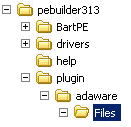 Once you have everything downloaded you need to extract all of the files into C:\pebuilder313\plugin\.Many of the plugins come as CAB archives so if you don’t have software to extract them just use the Add option when you select your plugins in PE Builder.Each of the plugins should come with an HTML file detailing how to install the plugin and what files you will need to copy from your system to the plugin directory, where to download them from, and where to put them. For example, Paraglider’s Ad-Aware SE Pro needs you to install Ad-Aware on your system and copy the files from “c:\Program Files\Lavasoft\Ad-Aware SE Plus\” into the “Files” folder inside of the Ad-Aware plugin’s directory. The HiJackThis plugin needs you to download the HiJackThis executable from http://www.spychecker.com/program/hijackthis.html and put it in the files folder in the HiJackThis plugin’s directory. Now that we have everything downloaded start up PE builder by running C:\pebuilder313\pebuilder.exe. Choose the path to the Windows XP Source Files (d:\xp files) which you copied to the hard drive earlier.
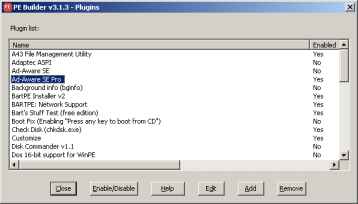 Click on the “Plugins” button, add the plugins that came in CAB archives, and enable the plugins you wish to install (make sure all of the ones you downloaded above are enable). Disable the following Plugins so XPE will work properly:
Once you have everything downloaded you need to extract all of the files into C:\pebuilder313\plugin\.Many of the plugins come as CAB archives so if you don’t have software to extract them just use the Add option when you select your plugins in PE Builder.Each of the plugins should come with an HTML file detailing how to install the plugin and what files you will need to copy from your system to the plugin directory, where to download them from, and where to put them. For example, Paraglider’s Ad-Aware SE Pro needs you to install Ad-Aware on your system and copy the files from “c:\Program Files\Lavasoft\Ad-Aware SE Plus\” into the “Files” folder inside of the Ad-Aware plugin’s directory. The HiJackThis plugin needs you to download the HiJackThis executable from http://www.spychecker.com/program/hijackthis.html and put it in the files folder in the HiJackThis plugin’s directory. Now that we have everything downloaded start up PE builder by running C:\pebuilder313\pebuilder.exe. Choose the path to the Windows XP Source Files (d:\xp files) which you copied to the hard drive earlier.Click on the “Plugins” button, add the plugins that came in CAB archives, and enable the plugins you wish to install (make sure all of the ones you downloaded above are enable). Disable the following Plugins so XPE will work properly:• nu2Shell v1.0• PE Loader 0.4• PENETCFG: Automatically start PE Network configurator• PENETCFG: PE Network configurator (theTruth)• Profiles folderYou will most likely see two Ad-Aware plugins. The one labeled as “Ad-Aware SE Pro” is the one you want enabled, make sure the plugin labeled as just “Ad-Aware SE” is disabled. Once you are done enabling and disenabling plugins click the “Close” button.Customization There are a few items you will want to customize before you continue. Look in the c:\pebuilder313\plugin\xpe-1.0.2\ folder and rename “z_xpe-custom.inf.sample” to “z_xpe-custom.inf”. Open up z_xpe-custom.inf in Notepad or another text editor. By editing z_xpe-custom.inf we can change quite a few of XPE’s options. The following are some useful suggestions:First let’s change the name displayed on start up. Find:
| [SetValue]"txtsetup.sif","SetupData","loaderprompt","""Starting Windows XPE [The Horse Power]...""" |
| [SetValue]"txtsetup.sif","SetupData","loaderprompt","""My Rescue CD...""" |
| ; IE Start Page0x1,"Software\Microsoft\Internet Explorer\Main","Start Page","about:blank"0x1,"Software\Microsoft\Internet Explorer\Main","Default_Page_URL","about:blank" |
| ; XPEinit startup menu & desktop |
| 0x2,"Sherpya\XPEinit\Programs","Anti-Spyware\Run Adaware on C","%SystemDrive%\programs\adaware\Ad-AwareScan.cmd||%SystemDrive%\Programs\adaware\Ad-Aware.exe,0"0x2,"Sherpya\XPEinit\Desktop","Run Adaware on C","%SystemDrive%\programs\adaware\Ad-AwareScan.cmd||%SystemDrive%\Programs\adaware\Ad-Aware.exe,0" |
| ; TaskBar on Top - Autohide0x3,"Software\Microsoft\Windows\CurrentVersion\Explorer\StuckRects2","Settings",\28,00,00,00,ff,ff,ff,ff,03,00,00,00,01,00,00,00,3c,00,00,00,1e,00,00,00,fe,\ff,ff,ff,fe,ff,ff,ff,02,04,00,00,1c,00,00,00 |
| ; TaskBar on Top - Autohide;0x3,"Software\Microsoft\Windows\CurrentVersion\Explorer\StuckRects2","Settings",\; 28,00,00,00,ff,ff,ff,ff,03,00,00,00,01,00,00,00,3c,00,00,00,1e,00,00,00,fe,\; ff,ff,ff,fe,ff,ff,ff,02,04,00,00,1c,00,00,00 |
| ; TaskBar on Bottom - No Autohide;0x3,"Software\Microsoft\Windows\CurrentVersion\Explorer\StuckRects2","Settings",\; 28,00,00,00,ff,ff,ff,ff,02,00,00,00,03,00,00,00,3f,00,00,00,1e,00,00,00,fe,\; ff,ff,ff,e4,02,00,00,02,04,00,00,02,03,00,00 |
| ; TaskBar on Bottom - No Autohide0x3,"Software\Microsoft\Windows\CurrentVersion\Explorer\StuckRects2","Settings",\28,00,00,00,ff,ff,ff,ff,02,00,00,00,03,00,00,00,3f,00,00,00,1e,00,00,00,fe,\ff,ff,ff,e4,02,00,00,02,04,00,00,02,03,00,00 |
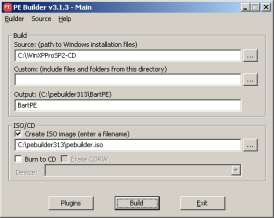 Once all of the customizations are done go back to the PE Builder program. If you want PE Builder to burn the CD for you check the “Burn to CD” checkbox and select your burner. I prefer to use Nero to burn the ISO myself but you can choose any CD burning software you like. I recommend using a CD-RW for your first few attempts at making a boot CD. CD-Rs are compatible with more CD drives but CD-RWs can be used over and over again for testing CD images as you construct new PE Builder CDs with different plugins and options. Check the “Create ISO image” check box then click the “Build” button to generate an ISO of your CD. Click “Yes” and “I agree” on the two windows that pop up and Bart’s PE Builder should begin to build your CD.Using the CDAfter you burn the ISO, test the PE Builder CD by rebooting your computer, going into the BIOS, and setting the CD-ROM as the first boot device. On some computers there’s a function key you can hit at boot up that will let you choose the drive to boot from (it’s F12 on most Dell’s made in the last few years). Once you boot from the CD you should see the Windows’s Classic Start menu interface. Assuming the proper drivers are on the CD you should be able to get a network connection and surf the web or connect to a file server. You can also try defragging, copying files to and from or partitioning the local hard drives. When you use Ad-Aware make sure you set it to do a custom scan and point it to the C: drive.
Other useful plugins:
Below is a list of other useful security, Anti-spyware and recovery plugins for Bart’s PE Builder I did not include above for the sake of space and simplicity. If you have any problems setting them up feel free to contact me, or better yet look at the web pages listed in the “Further Research” section at the end of this article.
Angry-IP-Scannerhttp://www.drowaelder.de/winpe/PEIndex.htmGreat for finding out what hosts are on your network.
Eraserhttp://www.bootcd.us/BartPE_Plugin_Details/57/Great for scrubbing the hard drive clean of all data.
Firefox-1.9 and Firefoxflash-1.1http://oss.netfarm.it/winpe/Use these plugins to run the Firefox web browser from your boot CD.
HWPnPhttp://www.paraglidernc.com/6901.htmlNormal a PE Builder boot CD only looks for hardware on startup, but if you plug in something like a USB thumb drive after you boot, PE will fail to find it. The HWPnP plugin will allow you to plug in USB devices anytime you like.
InsidePro Tools v1.0.0http://www.insidepro.com/eng/download.shtml
Great tool for bypassing Syskey and grabbing password hashes from the SAM file. I use the older SAMInside v2.1.3.0 version because the newer demo versions disable the export to PWDUMP file option that’s useful for importing into L0phtcrack.
Keyfinder-PEhttp://www.drowaelder.de/winpe/PEIndex.htmThe Keyfinder-PE plugin will extract the XP registration key from the hard drive
.Registry Editor PE v0.9chttp://regeditpe.sourceforge.net/Sometime you may need to do finer work to the registry then Ad-Aware or HiJackThis will allow. Registry Editor PE lets you load the registry hives off of the local hard drive and edit any key you like.
Sam Spadehttp://www.gonetiq.com/winpeSam Spade is a collection of useful network tools for finding out information about hosts on the Internet. Sam is quite popular with spam-fighters.
Windows Password Renew 1.0-RC2 for WinPE http://www.sala.pri.ee#passPassword Renew lets the user change the password of the local Administrator account or create a new admin level user with a password of their choice. This is a great tool for getting into Windows boxes you don’t have an admin password for.I hope you have found this article useful. .
Further research:911 Rescue CD Forums, the best place to ask questions about PE Builder and its plugins:http://www.911cd.net/forums/Adrian’s PE Builder Website:http://www.irongeek.com/i.php?page=security/pebuilderBart’s PE Builder Homepage:http://www.nu2.nu/pebuilder/Bart’s notes on adding additional network and SCSI drivers:http://www.nu2.nu/pebuilder/help/drivers.htmSherpya’s XPE and collection of plugins:http://oss.netfarm.it/winpe/A huge collection of PE Builder plugins:http://www.bootcd.usAnother great step by step tutorial on using PE Builder and XPE:http://xpe.collewijn.info/index.php

